
Manually Adding Prospects in Trailmap
When would I manually add a prospect?
You can manually add a prospect to ensure that all potential attendees or leads are accurately captured in your campaign. This is useful for walk-ins, phone registrations, or manually collected RSVPs that weren’t automatically entered through your marketing campaign.
How do I manually add a prospect in Trailmap?
Follow these simple steps:
Log in to your Trailmap account.
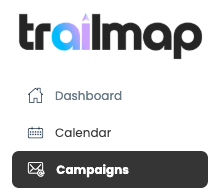
From the left-hand menu, click on Campaigns.
You’ll see a list of your active campaigns. Select the relevant campaign you want to update. If you're hosting two events under one campaign, click the dropdown to navigate to the correct event.
Inside the campaign, click on the Registrations tab.
On the right-hand side, locate and select the green “Add New” button.

Enter all of the prospect’s details, such as their name, contact information, and any other relevant registration information.
Once complete, click Save.
Your prospect will now be manually added to the selected campaign and visible under the Registrations list. Trailmap will accurately track all leads by their source so you can differentiate leads we've generated versus ones you've manually added.